OnePDFPlace
How to reorder PDF pages
Move pages within one PDF, then download a copy in the new order. The Pages panel also provides rotation, duplication and removal controls.
Last updated: 29 October 2026
Before you start
Keep the original PDF and decide the intended order before you start. This workflow organizes pages within one uploaded document. It does not combine several uploaded PDFs into one file. Your PDF is processed on our server.
Step by step
Upload the document
Choose PDF and select the file you want to organize. Wait until its pages finish loading so the thumbnails represent the document you are working on.
Open Pages
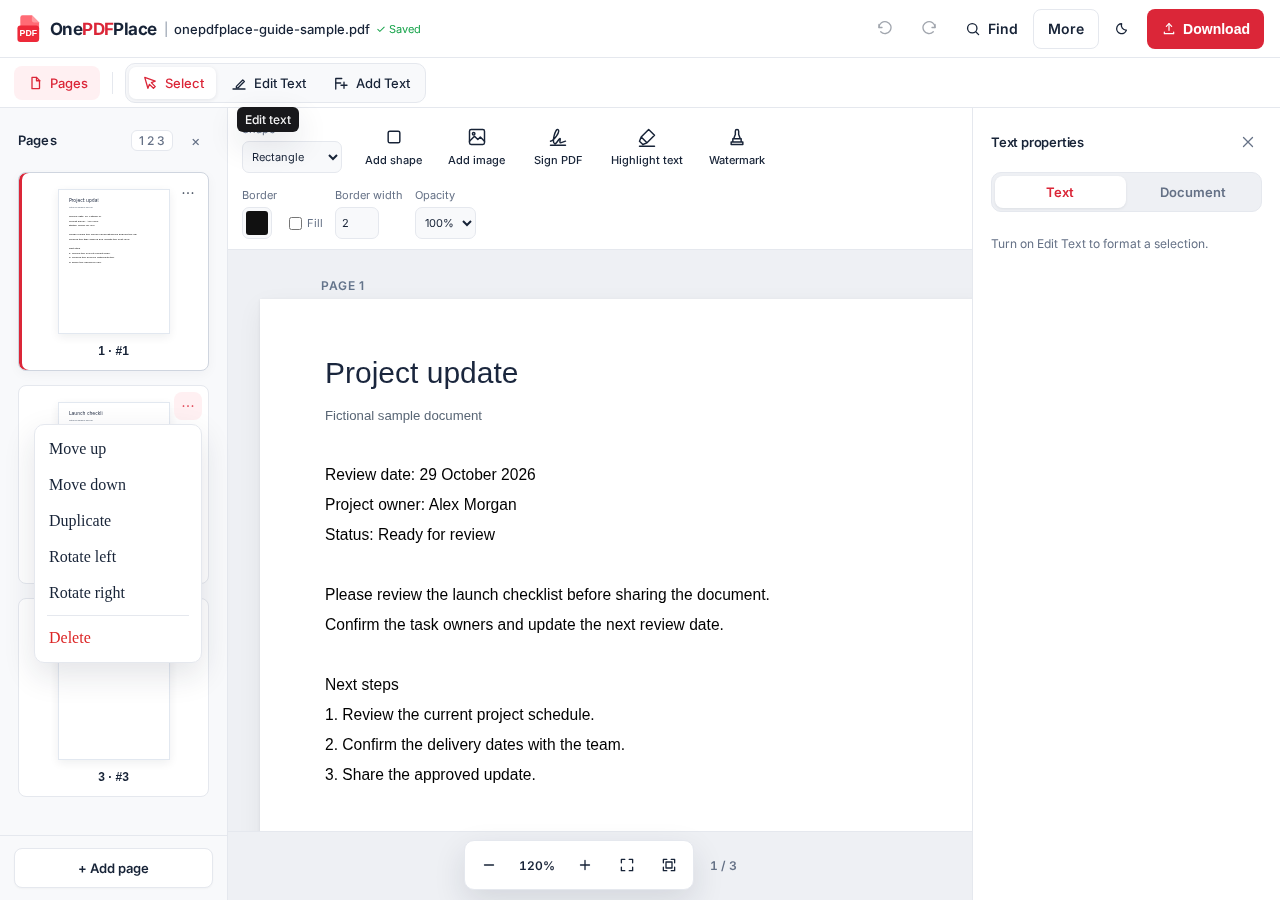
Use Pages to open the thumbnail panel if it is not already visible. On a small screen, Pages is in the bottom toolbar. Select a thumbnail to view that page in the workspace.
Move a page to its new position
Open the three-dot Page options menu on its thumbnail. Choose Move up or Move down and repeat until the page is where you want it. The first page cannot move up and the last page cannot move down. On desktop, you can also drag a thumbnail onto another thumbnail to change the order.
Review any other page changes
Page options also includes Rotate left, Rotate right, Duplicate and Delete. Use only the changes you need, and review the thumbnail order from top to bottom afterward. Undo reverses a mistaken page operation while the editing session is open.
Download and check the final order
Choose Download, open the exported PDF and review it from first page to last. Check page count, order and orientation, especially where page sizes or rotations differ. Keep the original until you have checked the result.
Moving pages on a phone or with a keyboard
Move up and Move down provide an alternative to dragging. Open Page options, choose the needed command and repeat. On a narrow screen, reopen Pages when you need to continue reviewing the thumbnails.
Removing or duplicating a page
Delete removes the selected page from the edited document; it does not change the original file on your device. The editor keeps at least one page, so Delete is unavailable for a single-page document. Duplicate creates another copy within the current PDF.
Printed page numbers that are part of the PDF content are not automatically rewritten when you reorder pages. Review contents pages, references and page labels separately.
Check more than the thumbnails
- Confirm the downloaded PDF has the intended first and last pages.
- Read any contents page or references that depend on page numbers.
- Check links, forms and other important document features in the exported file.
- Page changes do not create a backup or cloud draft. Download the result before closing or refreshing the tab.
Try it with your PDF
Use the free editor with a file you are authorized to edit. No sign-up is needed.
Choose a PDF to get started →