OnePDFPlace
How to edit existing text in a PDF
Make a small change to the text already in a supported PDF, adjust its formatting and download an updated file.
Last updated: 29 October 2026
Before you start
Keep an original copy. PDFs with selectable native text are usually a better starting point than scans or text drawn as shapes. Your file is uploaded to our server for processing; read the Privacy Policy before using a sensitive document.
Step by step
Upload your PDF
Choose PDF on the homepage and select one file. Wait for the pages and fonts to finish loading before making changes. No account is required.
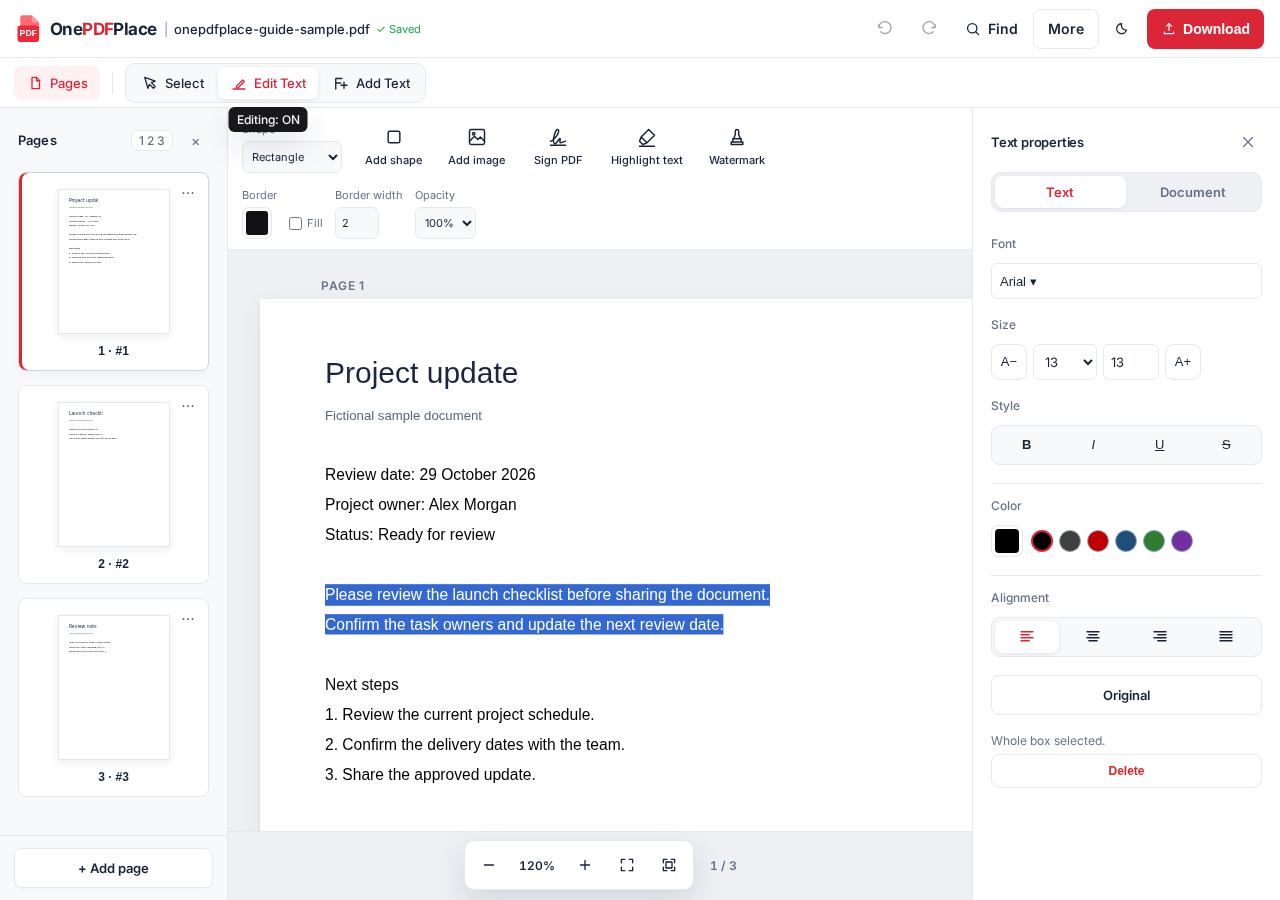
Choose Edit Text and select the existing text
On desktop, choose Edit Text. On a small screen, use Edit in the bottom toolbar. Click or tap the text you want to change, place the cursor and type your correction. Add Text creates a separate text box; it is a different action from changing the existing words.
Adjust formatting only where needed
Select the words you want to format and use the available font, size, bold, italic, color or alignment controls. Review the whole paragraph after changing its length or font: wrapping and nearby content can change.
Download and review the file
Choose Download, wait for the PDF to finish generating and open the downloaded file. Check your corrected words, line breaks, page order and any important links. Keep the original until you are satisfied with the result.
If the text will not edit
A scanned page is an image rather than ordinary PDF text. OCR may make some scans editable, but results depend on scan quality and the processing setup. A page containing both native text and scanned regions may still have uneditable areas. If a section stays unselectable, editing that section is not guaranteed.
Password-protected PDFs cannot currently be edited. Unusual fonts, text converted to outlines and complex layouts can also affect selection or appearance. Check the original file rather than assuming a blank or unselectable area contains no content.
If the layout changes
Try a shorter replacement or keep the original font size where practical. A different font may have different letter widths, even at the same size. Compare the surrounding paragraph and other pages after export; faithful results are not guaranteed for every PDF.
Before you share the download
- Read the changed text and check accents, symbols and unusual characters.
- Check line wrapping, images, links and page boundaries in a PDF viewer.
- Editing, highlighting or covering content is not secure redaction. A downloaded PDF can contain saved editing information for reopening.
- Your active work is held in the current tab. Closing or refreshing it can lose edits that you have not downloaded.
Try it with your PDF
Use the free editor with a file you are authorized to edit. No sign-up is needed.
Choose a PDF to get started →