OnePDFPlace
How to add a visual signature to a PDF
Place a drawn, typed or image-based signature on your PDF. This creates a visual mark; it does not apply certificate-based digital signing or verify identity.
Last updated: 29 October 2026
Before you start
Keep an original copy and check what the recipient requires. A visual signature may not meet a requirement for certificate-based digital signing. The document and your placed signature are processed on our server to generate the download.
Step by step
Open the PDF and find the right page
Choose PDF, wait for loading to finish and navigate to the page you want to sign. Keep that page visible before opening the signature tool.
Choose Sign PDF
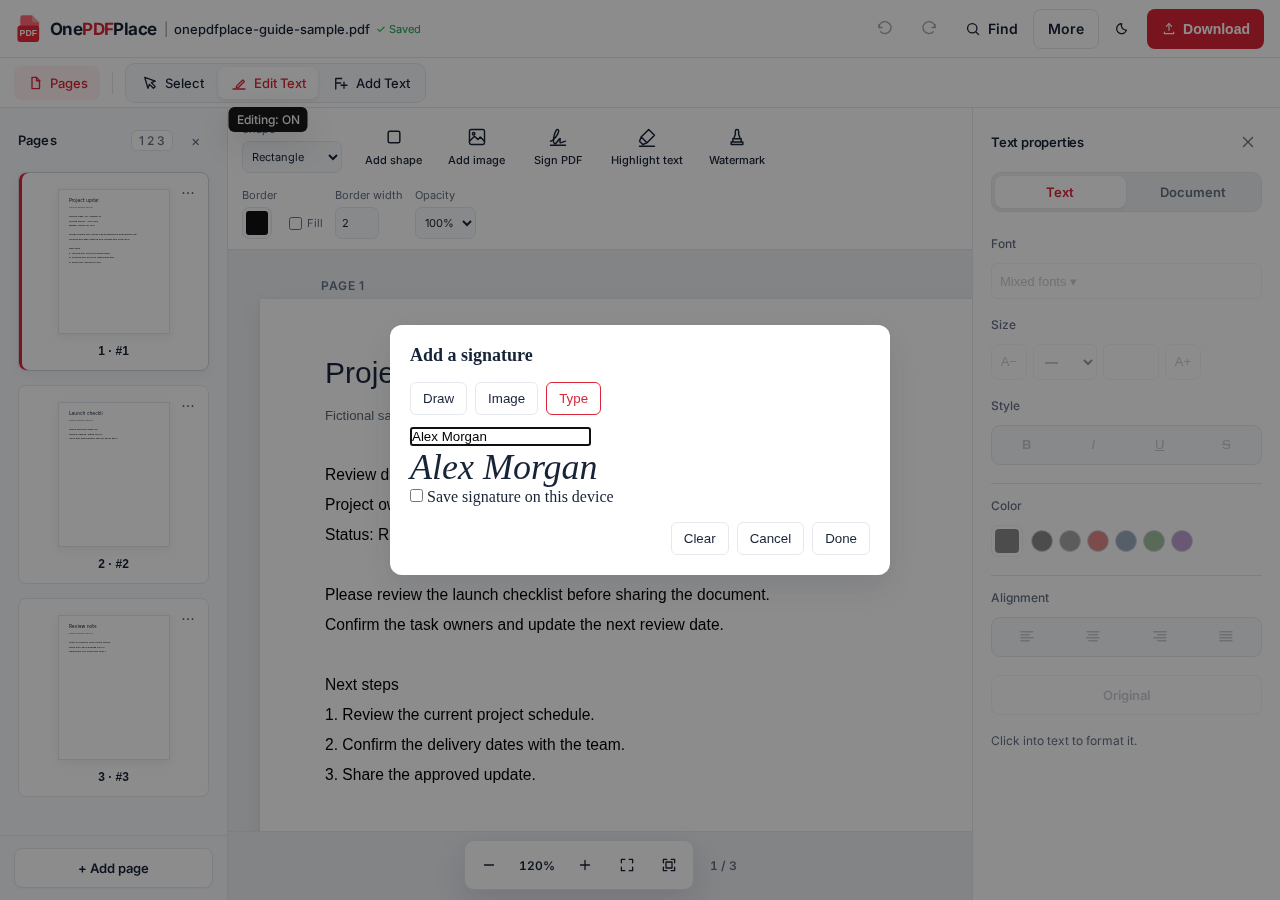
Open Sign PDF in the insertion tools. Choose Draw to write with your mouse, touch or pen; Type to enter a name; or Image to upload a PNG, JPEG or WebP signature image.
Create the mark and choose Done
Draw or type your signature, or select its image. Use Clear if you want to start again. Choose Done when the preview is ready. The signature is added to the visible page; a second placement click is not required.
Move and resize the signature
Drag the added signature into position and use its resize handle to fit the intended space. Check that it does not cover wording you need to read. If the wrong page received the mark, use Undo and navigate to the intended page before trying again.
Download and inspect it
Choose Download and open the resulting PDF in a viewer. Confirm the signature is on the correct page, looks clear and stays inside the intended area. Review the rest of the document too.
Using a signature image
Use a clear image with enough empty space around the mark. A transparent PNG can avoid a white rectangle over the page. An uploaded image is still a picture of a signature; it does not become a cryptographic digital signature.
Saving a signature on your device
Save signature on this device is optional. If selected, the editor stores its image in this browser for later reuse. Leave it unchecked on a shared device. In the signature dialog, use Remove beside a saved signature to delete that local saved copy.
Removing a saved signature does not remove it from PDFs you already downloaded or shared. Clearing site storage also removes locally saved signatures and preferences.
What this tool does and does not do
- Draw, Type and Image add visual marks to the page.
- The tool does not verify who created the mark or apply a certificate-based digital signature.
- Editing a previously digitally signed PDF can affect its existing signature validity. Keep the original and check any signature status in your PDF viewer.
- The editor is not a document archive. Download the result before closing the tab and keep your own copy.
Try it with your PDF
Use the free editor with a file you are authorized to edit. No sign-up is needed.
Choose a PDF to get started →